See duplication resulting from import for a discussion of the nature of the problem and its solution.
To merge data items:
Ensure you have the window open that contains the duplicates you wish to deal with.
Select Tools Database tools Duplicate data items from the Main menu.
The Merge data items window will be displayed.
Drag the item you wish to REMOVE into the Source Item box.
Drag the item you wish to RETAIN into the Destination Item box. The source and destination items must come from the same table.
Make very sure you have selected the correct items!
The raw data from the selected items are shown in a hierarchical tree. At the top of the tree is the name of the table from which the items come, identified by a table icon  . Below this are shown the names of the columns in that table, identified by column icons
  , and below these are the actual data values for each column in the selected row, identified by a cell icon
  .
.
If the value in a cell is a foreign key to another table, you can expand the tree further, to show this table, its columns and cells, and explore the related data.
When you are sure you have selected the correct items selected, close the window from which the items that will be merged came. Then choose the [Merge] button.
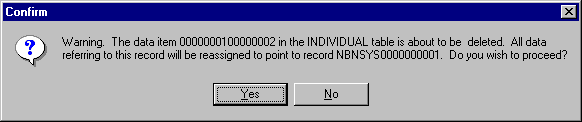
You will be asked to confirm that you want to proceed:
If you click the [Yes] button, or press <Enter>, the merge process will be carried out. It does not usually take more than a few seconds, unless very large numbers of items are related to the 'source'.
Click the [Clear] button on the Merge Data Items window to empty the Source and Destination boxes ready for the next merge.
NOTE:
This is a powerful tool which has the potential to damage your data and should be used with great care.