Selecting Edit - Find from the Main menu.
Pressing the short-cut key <Ctrl-F>.
Clicking the  button in the active toolbar.
This dialog allows you to search for a biotope category belonging to the classification system that is currently selected in the Biotope Dictionary Browser, by looking for matches to typed text.
When you are prompted for a biotope name, this dialog can be accessed by typing some text and pressing <Enter>. The text you typed will appear in the 'Search Text' box. You can add to or change the text in this box at any time to refine your search.
In the Biotope Dictionary Browser, this dialog can be accessed by:
Selecting Edit - Find from the Main menu.
Pressing the short-cut key <Ctrl-F>.
Clicking the button in the active toolbar.
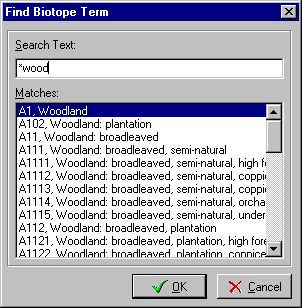
Type some text likely to appear in the name of the biotope category you want to find. The list will show categories with names starting with the string you type.
If you prefix the text you type with an asterisk, "*", then the list will show names containing the text.
Select a category in the list by clicking on it with your mouse, or press <Tab> to position the cursor in the list, and then use the <up arrow>, <down arrow>, <PgUp>, <PgDn>, <Home> and <End> keys to position the highlight over the correct category.
Choose [OK] or press <Enter> to select the highlighted category.
Double-click on an item in the list to return it.
Choose [Cancel] or press <Esc> to close the Find dialog without making a selection.
